Methodology · Updated

How JiggleGuard detects productivity spoofing

JiggleGuard looks for combinations of signals suggesting that mouse and keyboard input on a work computer is being produced by a tool rather than a person. This page explains the signals, how a flag is raised, what the method can't detect and how far it has been tested. It doesn't publish detection thresholds.

The five kinds of signal

A small agent analyses input on the computer itself, in a rolling ten-minute window. It doesn't record typed text, screens, messages or files.

  1. Injected input

    Windows marks input that software has injected rather than a physical device. JiggleGuard uses that marker, and makes allowances when a remote-desktop session or assistive technology is active, because those inject input legitimately.

  2. Movement patterns

    Rhythm, path shape, pauses, and whether movement leads to clicks. A steady, repeating sweep with no clicks over a long stretch is suspicious. A short regular stretch is not.

  3. Keyboard behaviour

    Whether typing goes with mouse movement, whether a single key is pressed on a machine-like beat, and whether key events were injected. This uses counts and timing; typed text is never recorded.

  4. Known hardware

    Identifiers of connected input devices, checked against a list of known jiggler devices, plus devices that only ever produce movement.

  5. Known software

    Known jiggler and keep-awake app names, and requests to keep the system awake. Keep-awake on its own never raises a flag; it only adds weight to other signals.

How a flag is raised

Some combinations are treated as firm indicators, for example injected input while a known jiggler tool is running. Softer signals, such as a regular movement rhythm or long stretches of movement without typing, each add to a score.

The result is a severity rating. Only medium and higher ratings raise a flag. The rating comes from rules we set, so treat it as a measure of how many and how strong the signals were, not as a statistical probability that someone was cheating.

Each flag records the time window, the severity rating and which signals fired, so a reviewer can see why it was raised. Flags can be exported as CSV.

What a reviewer sees

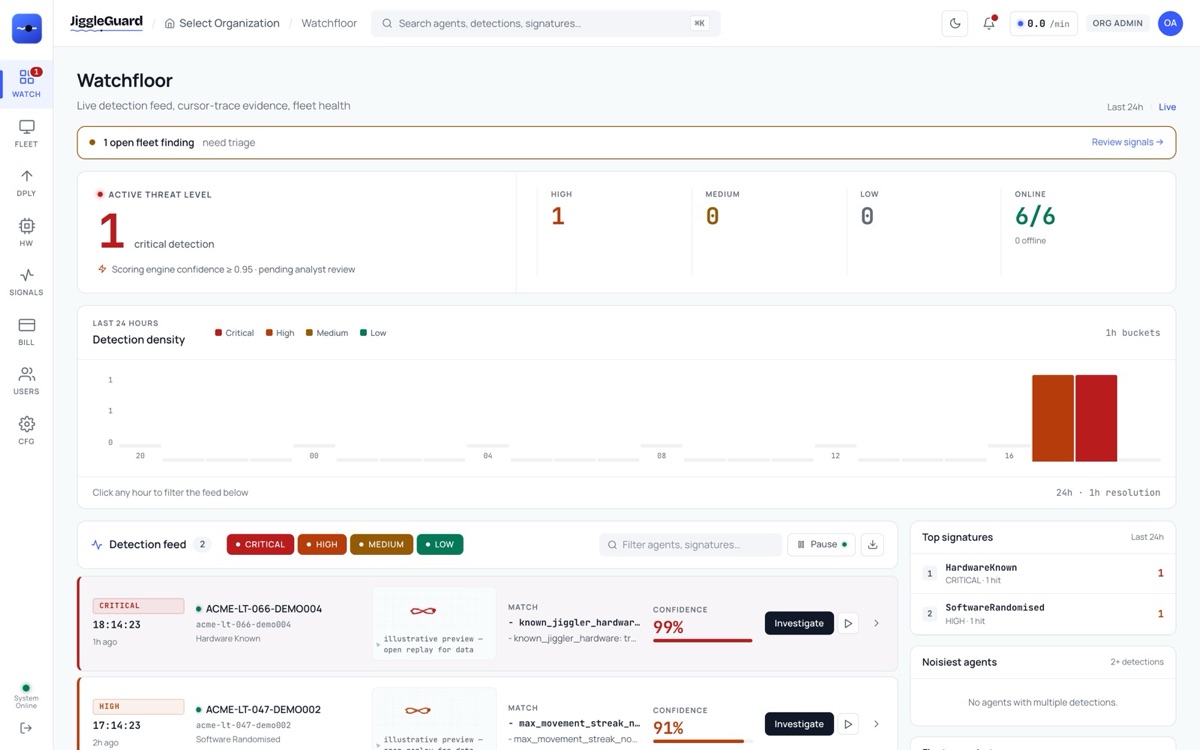
Flags appear in the console with their severity, time and the signals that matched. Two examples show why similar-looking input can lead to different outcomes.

The JiggleGuard console Watchfloor page with demonstration data: one critical and one high-severity flag in the detection feed, a 24-hour detection chart, and six of six demo computers online.
The beta console's Watchfloor, running on demonstration data from fictional organisations. The console currently labels each flag's rule-based score as “confidence”; it is not a statistical probability (see how a flag is raised).

Example A · No flag

Injected input during a remote session

  • Seen: software-injected mouse and keyboard events for 40 minutes.
  • Also seen: a remote-desktop session was active the whole time.
  • Outcome: no flag. Remote sessions inject input legitimately, so the injection rule is suppressed.

Example B · Flag for review

Known jiggler device, regular movement, no typing

  • Seen: a USB device matching a known jiggler, a 2-second movement rhythm and no typing for three hours.
  • Outcome: high-severity flag, recording the time window and those three signals.
  • Next step: a person checks the context and talks to the employee. The flag alone doesn't establish misconduct.

Illustrative examples of how the rules treat two situations. Not data from a real person.

What it can't detect

Every detection method has blind spots. These are the ones we know about.

  • Renamed or custom software. Matching app names is necessary but easy to evade. Injected-input and movement signals help, but a tool written to avoid them may not be flagged.
  • Randomised movement. A tool that varies its timing and path removes the regular rhythm that makes many jigglers stand out.
  • Regular people. Some people move very regularly. In our own baseline, a real person's movement showed noticeable regularity, so rhythm is never used on its own.
  • Mechanical movers. A motorised pad moving a real mouse can't be detected at the device level. Only the movement can reveal it, and not always.
  • Tools beneath the agent. Input injected at kernel level is invisible to an agent running as a normal application.
  • Tools that produce no input. Some browser-based tools only stop a screen sleeping. With no input to analyse, there is nothing for movement analysis to see.
  • Some key jammers. Gadgets that alternate between keys can avoid the keyboard rules.

How far it has been tested

The detection rules are checked against a set of synthetic test scenarios built to mimic people and tools, and against one real-world baseline comparing a person with a mechanical mover on the same computer. Synthetic tests catch regressions when the rules change. They don't measure accuracy in the field.

We haven't yet measured accuracy across real organisations, so we don't publish accuracy figures. When we have field results, including false positives, we'll publish them here.

What the beta includes

FeatureStatus
Windows agent (silent MSI)Private beta
macOS agentIn development. It will need the Input Monitoring permission, granted at scale through an MDM profile
Web console, multi-tenant for MSPsPrivate beta
Alerts to Slack, Microsoft Teams or a webhookPrivate beta
CSV exportPrivate beta
Email alertsPlanned
Per-client billingPlanned
Code-signed Windows installerIn progress
LinuxNot supported

Reviewing a flag responsibly

  1. Check the context. Was a remote session, a presentation, a long download or an accessibility tool involved? Is there approved automation on that computer?
  2. Look at the work, not just the signal. A flag says the input looked machine-generated for a time window. It says nothing about the quality or amount of someone's work.
  3. Talk to the person. Share what was flagged and let them explain before drawing any conclusion.
  4. Follow your own policy. Your organisation decides what's allowed, how it tells staff about monitoring and how it handles concerns. See data and privacy for what JiggleGuard collects.

Try it in the Windows beta

We're inviting a small number of organisations to the private beta. Join the list for an invitation, or ask us a question first.